# Sender Wallet (Extension)
Firmware version M-7.0 (Multi-Coin) or newer now allows you to use the Sender Extension (V1.8.0 or newer) with your Keystone. You can set the extension as a software wallet on your Keystone Essential or Pro.
## **I. Preparation**
1\. [ Have Firmware](https://keyst.one/firmware?locale=en) version M-7.0 (Multi-Coin) or newer running on your Keystone Essential or Pro. (For more details, please refer to the following [article](https://support.keyst.one/getting-started/firmware-upgrading))
2\. Download the Sender browser extension (**V1.8.0 or newer**) from Sender's [official website](https://senderwallet.io/).
## **II.Importing your Keystone hardware wallet to Sender wallet extension**
#### **1. Set Up Your Sender**
1\) Run the "Sender'' Extension. Click on \[Create Wallet] to begin setting up your Sender.
2\) Set a password for your Sender wallet and click \[Continue].
3\) An Account ID will be generated automatically for you to interact with the NEAR ecosystem. Click \[Continue].
4\) Proceed to write down and securely store the Secret Recovery Phrase generated for you. Click \[Continue] for the next step.
5\) Verify that you have copied the Secret Phrase correctly and click \[Create account] to finish the account setup.
6\) Congratulations! You have successfully set up your Sender account.
#### **2. Connect Sender to Your Keystone**
1\) On the top left hand corner of the Sender app, click on the "Menu" icon and select \[Connect Keystone].
2\) Follow the instructions displayed on the Sender app to get it ready for QR code scanning.
3\) Grab your Keystone device. Tap the "Menu" icon on the top left-hand corner of the screen. Select \[Software Wallet] and then the \[Sender] option. Tap \[Confirm] to proceed.
{% hint style="info" %}
Please note that if your firmware version is **M-10.0** or newer, the **connection process on the Keystone** hardware wallet has been improved.
To connect your software wallet, simply tap on \[Connect Software Wallet] and then select \[Sender]. The QR code will be displayed automatically.
For more information about the updated UI design, please visit [Keystone's Revamped UI](../../getting-started/getting-started-with-m-10.0-or-newer-for-beginners).
{% endhint %}
4\) Tap the \[...] icon on the top right corner of your Keystone device. Select \[Connect Software Wallet] and a QR code will appear.
5\) Scan the QR code displayed on your Keystone device with your computer’s camera.
6\) Click the \[Create & Connect] button.
7\) An Account ID will be generated automatically for you to interact with the NEAR ecosystem. Click \[Create account].
8\) Congratulations! Your Keystone hardware wallet is now successfully imported to the Sender app.
## **III.Send Near with your Keystone hardware Wallet**
1\) In the Sender app, Click \[Send] and input the recipient’s Account ID and the amount you would like to send him/her. Tap \[Send] to proceed.
2\) Initiate the transaction by tapping the \[Confirm] button. Grab your Keystone device so you can scan the QR code displayed on the Sender app.
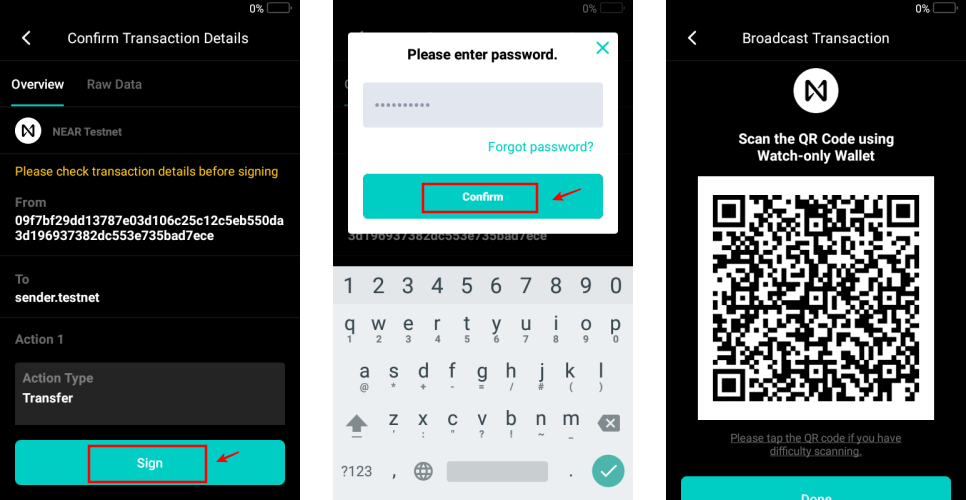
3\) With your Keystone device in hand, tap the \[-] icon to activate the camera. Scan the QR code displayed on the Sender app and tap \[Sign] to proceed.
4\) Enter your password after signing the transaction and tap \[Confirm]. A QR code will appear on your Keystone hardware wallet.
5\) Click the \[Get Signature] button on the Sender app and scan the QR code shown on your Keystone hardware wallet with the Sender app. Congratulations! The transaction is now successfully broadcast to the network.